Modeling Techniques for Design
Modeling for design covers modeling techniques that allow you to create complex forms and shapes quickly. These techniques can be used to design and ideate in 3D. They are - for the most part - non-destructive and help you to try different shapes without managing many of the more complicated parts of creating 3D objects.
Warning
While you can get ideas out fast using the workflows explained in this lesson, the result is not production ready and must be modeled properly after a design decision has been made. You can think of these techniques like rough concept art or quickly sketching out ideas before starting production.
Scene management in Maya
Up until now, we did not care to much about how objects are organized in our scene. To keep our sanity, Maya gives us a wide range of possibilities to organize objects in hierarchical as well as non-hierarchical ways.
Why you need to work cleanly
Working in a clean manner while trying to design can be a chore at first. However, searching for objects and digging trough a complicated mess while trying to hold that amazing design idea in our minds is nearly impossible. Even a simple scene can be made up of hundreds of objects while complete shots can be made up of thousands of single objects. Ensuring editability of such a number of objects means you must work cleanly from the first pCube you create.
- Over the creation of a shot and scene, these short thoughs and actions you put into working cleanly will save you loads of time in a heavy and hard to navigate scene.
- Maya does not allow objects to share a name. This makes automation easier and let’s you identify each object by its name without even looking at it. - On the other hand, this means you will need to name each node properly and with care.
- Most of the time, you will share your asset or scene with a team. Making someone else understand your asset quickly will save them time as well as make sure they do not need to break your flow to ask for an explanation of how to use the scene.
Tools for clean scenes
Naming Objects
One of the most powerful tools to ensure easy understanding of the scene as well as mitigating name clashes is object / node naming. Find a clear name for each node you expose to the scene ( esp. Geometry, Groups, Joints, Deformers, Materials, Textures, Shadinggroups, Layers ). If the same object appears a lot of time, numbering is a quick tool. When naming your nodes, adding proper and consistent suffixes makes them easy to identify. It also shows how you intend to use them as well as making automation and selecting them by name possible.
Hint
I suggest using short and recognizable suffixes. Personally, I like to tag all my meshes with ‘_MSH’, joints with ‘_JNT’, layers with ‘_LYR’ and materials with ‘_MAT’. You can use your own suffixes or add other suffixes if you need them. (i.e. adding _EXP to stuff that needs to get exported to a game engine)
Select by name
Proper naming gives you access to another often overlooked but very powerful tool: Select by name. By typing the name of an object into the select by name box, you can quickly select an object, even if you can’t see it.

Using the wildcard character ‘*’ you can select all objects that share some part of the name. If you properly named your objects, you can, for example, select all objects with the suffix _JNT by typing ‘*_JNT’ into the box.

Renaming a lot of objects
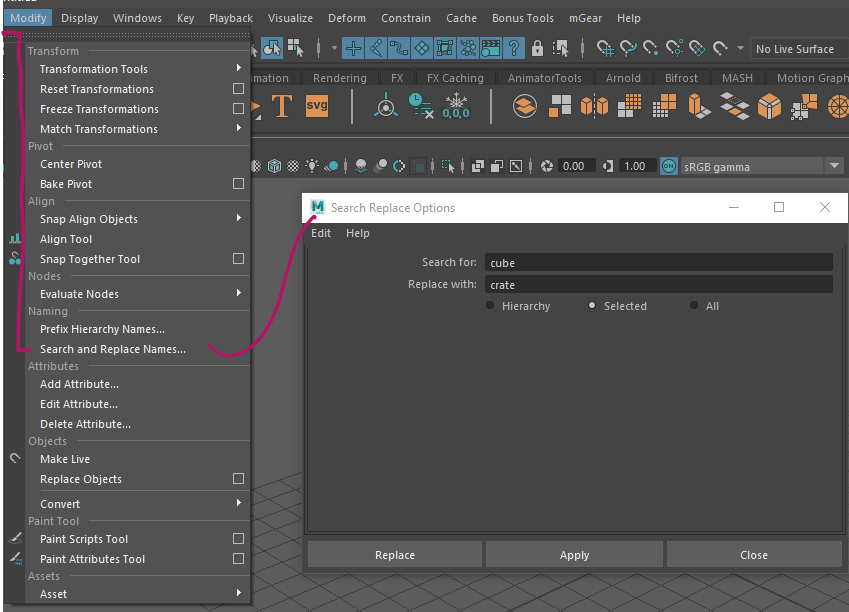
You can rename a selection, hierarchy or even all objects in the scene with the ‘Search And Replace Names’ Tool. You can find this tool in Modify > Search and Replace Names…
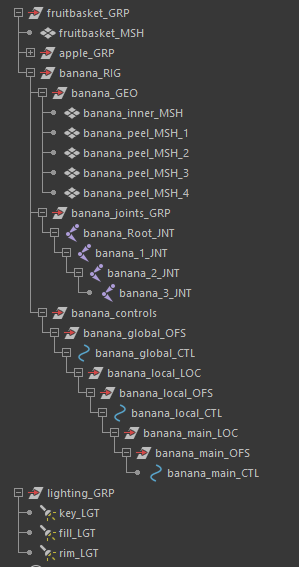
The scene hierarchy
Scenes in Maya are organized in a hierarchy of transforms. A transform that has another transform or node below it is called ‘Parent’ of that node. The node below is called ‘Child’ or ‘Decendant’ of the parent node.
You can parent nodes quickly by selecting the child, then selecting the parent and hitting P. To unparent, select any node and hit Shift+P.
A child node will always consider the parent nodes coordinate system as their zero coordinate system. Moving a parent node will change the local coordinates of the child ( and, at least in most cases, move it )
Grouping objects under a new parent transform by pressing Ctrl+G will create a new node that can be used to transform the whole group as one.
Using these principles, you can make a complex scene hierarchy easy to navigate:
Display Layers
You can use display layers to manage the visibility of objtcs. These layers can also be used do make objects unselectable. You can find the Display Layer Manager below the Channelbox.
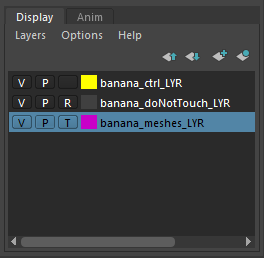
A layer can have multiple states, symbolized by the letters in the boxes bevore the layer. You can change the state by clicking on the letters.
| V | P | R | T |
|---|---|---|---|
| Visibility | Playback Visibility | Always Visible | Shown in wireframe |
| Unselectable | Selectable | Unselectable | Unselectable |
You can create new layers, add, remove and select objects by using the three small buttons on top of the editor or by selecting and Right-Clicking the layer name.
Autodesk Maya Manual on Display Layers:
Sets and Partitions
Sets are used for many internal things like shading or for deformers. You can use sets for selection and sorting of objects into groups outside the scene hierarchy. To create a set, select the objects you want in that set and go to Create -> Sets -> Set. After creating a set, you can add objects by MiddleMouse-Dragging them on the set in the outliner. You can also add objects by RightClicking them and selecting Sets -> Add Selection To Set -> [SETNAME]
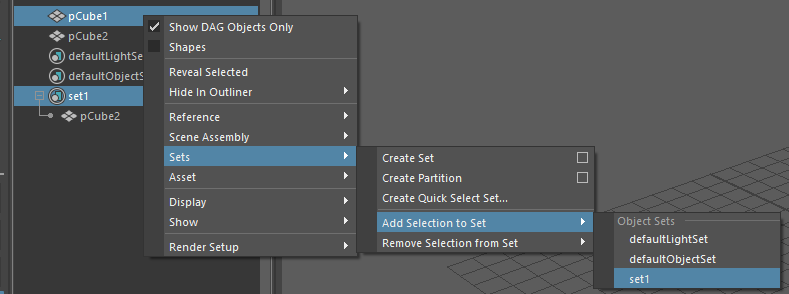
Autodesk Maya Manual on Sets:
Namespaces
Just like with programming, Maya allows the use of namespaces to organize assets and prevent the clashing of names. Namespaces will be especially important when assembling large scenes with a bunch of rigs, assets and lights in them. You can edit namespaces by using the Namespace Editor found in Windows -> General Editors -> Namespace Editor.
Autodesk Maya Manual on Namespaces
Constructive Solid Geometry
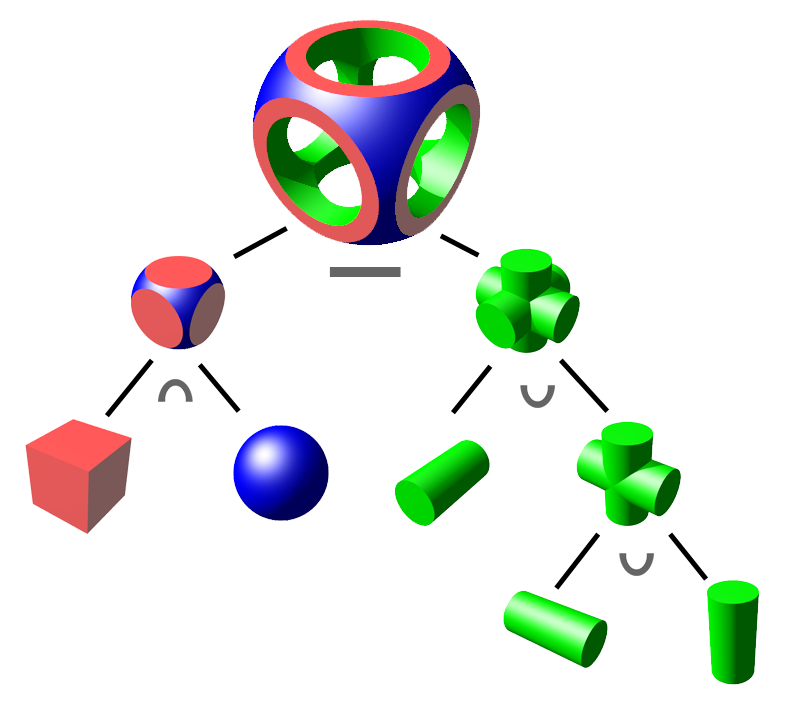
(Wikimedia Commons: Zottie)
What is it?
Constructive Solid Geometry describes the process of creating complex forms by subtracting, intersecting merging simpler forms. You can also find this process called Booling or Boolean Modeling which hints at the mathematical implications of the operations ( AND, OR, XOR )
Modeling using CSG is using the three simple operations of Union, Intersection and Difference in order to create infintely complex new geometry. In the image above, you can see how using these simple operations in order can create geometry that would otherwise be hard to model quickly.
Warning
While you can create forms and shapes quickly using constructive solid geometry, the resulting mesh will have many errors and problems and will need lots of clean-up to be used in production. Use CGS to block out forms or for concepting, but always make sure to properly model or clean the objects afterwards.
Booleans in Maya
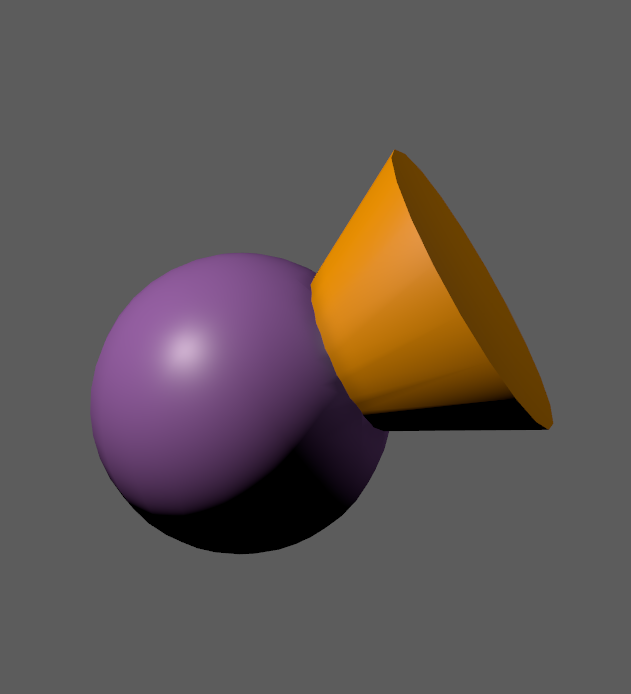
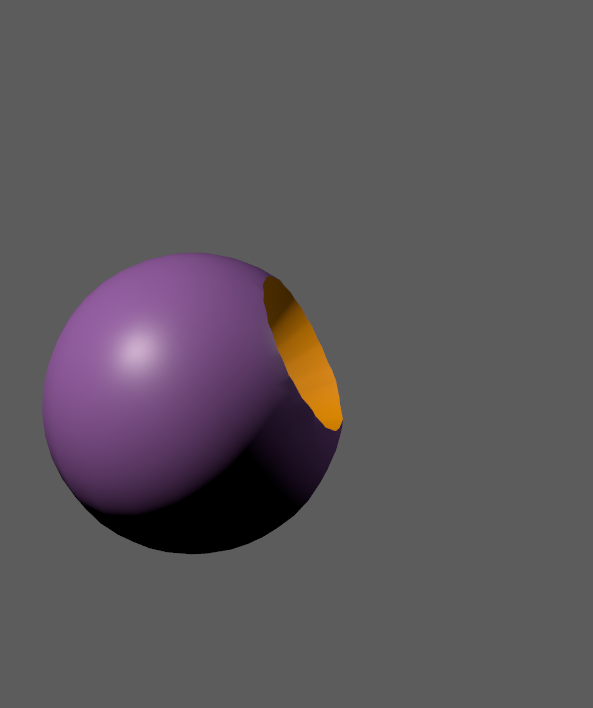
Maya supports the three basic types of mesh booleans: Union, Intersect and Difference. You can find all of them in Mesh -> Booleans.
| Union | Difference | Intersect |
|---|---|---|
 |
 |
 |
| Both objects are merged | Cutter is carved from the stock | Parts shared between objects |
To use them select the object you want to ‘cut’ first ( it is sometimes called ‘Stock’ ) and Shift-Select the object you want to cut with ( called ‘Cutter’ ). Then call one of the three boolean commands.
Hint
Maya will create a bunch of objects and show you the resulting objects. You can get rid of them by selecting the result object and using Edit -> Delete By Type -> History. Note that this will also remove any editability of the boolean operation.
Warning
Booleans only work with solid and valid geometry.
They will fail if your mesh …
- Has a hole in it
- Is non-manifold in the area that gets booled.
- Is intersecting itself in the cut area
Official Autodesk Manual on Booleans:
DCBool Manager
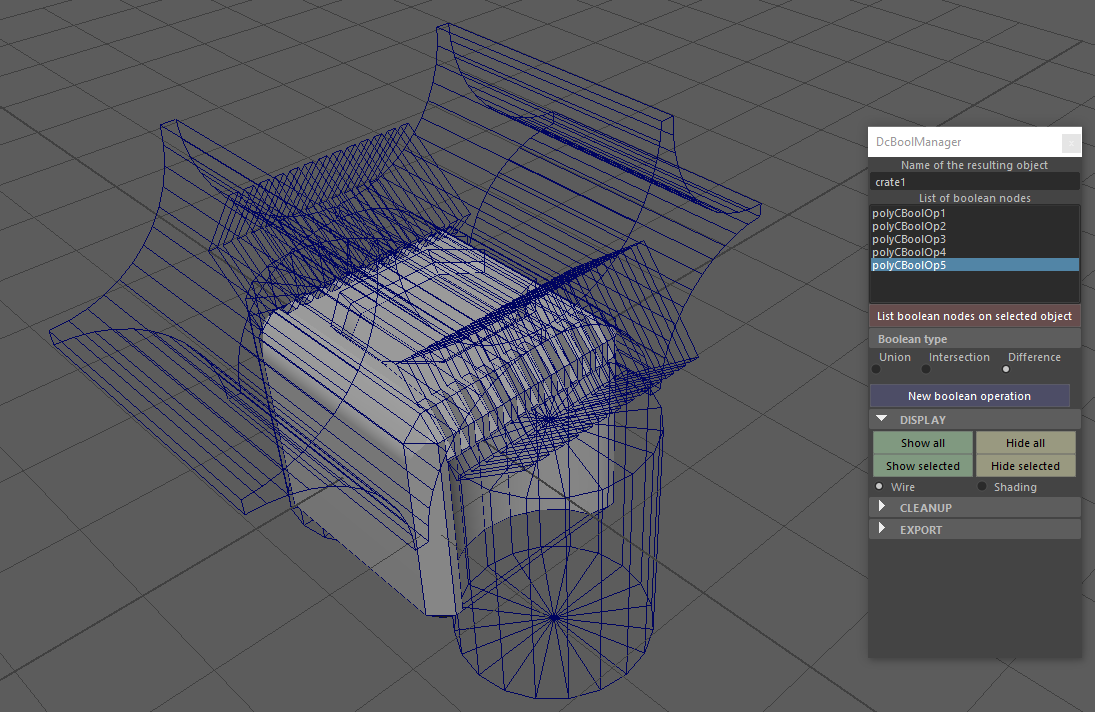
When you use booleans in Maya, they become invisible and are not easy to modify. For concepting and designing, we want them editable as much and as long as possible. The script ‘DCBool Manager’ helps with that. You can download it on Gumroad: DC Bool Manager Download
Videotutorial:
Hint
You can install scripts in Maya on Windows by putting them into C:/Users/[USERNAME]/Documents/maya/2020/scripts
Launch the script by typing `DcBoolManager` in a MEL tab script editor and hitting Enter.
Tip
You can create a button for DC Bool Manager by selecting the text and MiddleMouse-Dragging it to a shelf