Interface Overview
Interface
Maya’s interface can be daunting when opened for the first time. We want to have a closer look at the GUI and learn how different tasks are sorted intro different workspaces in this lesson. We will also have a look at the most important hotkeys and viewport navigation.
Overview

| Number | Name | Usage |
|---|---|---|
| 1 | Shelves | Quick access to many functions and scripts via icons sorted by tasks |
| 2 | Attribute Editor / Channelbox | Main editors for values and variables of selected objects and nodes |
| 3 | Viewport | Main interaction window with the 3D scene and world |
| 4 | Outliner | Quick access and manipulation of the scene hierarchy |
| 5 | Timeline Area | Scrub time, play animayion, access to animation settings |
| 6 | Console | Insert mel or python commands and call them |
| 7 | Script output | Outputs messages, warnings and errors from script editor |
| 8 | Status lines | Outputs messages about mayas status and tooltips |
Shelves and Workspaces

Maya’s tools are sorted into shelves and workspaces. Menus in the menu bar will appear and disappear based on the workspace selected. There are 5 main workspaces accessed by the dropdown in the top left corner:
- Modeling
- Rigging
- Animation
- FX
- Rendering
These workspaces correspond to tasks in the 3d pipeline and will show all tools needed for these tasks.
Shelves are customizable icon bars. You can use these bars to quickly call different Maya commands. Shelves are sorted by tool sets and tasks and you will most likely create your own shelves while working with Maya.
Note
Warning
Find out more about the power of shelves in the official Maya Documentation
Note
You can find a lot more information about the interface, including menu sets that are not covered in this quick start in the official Autodesk Maya Manual
Viewport Navigation Hotkeys
You will mainly use hotkeys to navigate the viewport. If you learn these by heart, interacting with the 3D viewport will become natural very quickly.
This section describes basic 3D Viewport navigation shortcuts for Maya. These are needed for very basic scene navigation.
| Orbiting the Camera/Viewport | Panning the Camera/Viewport | Dollying the Camera/Viewport |
|---|---|---|
 |
 |
 |
| Key Combination: | Key Combination: | Key Combination: |
| LeftMouse-Drag + Alt | MiddleMouse-Drag + Alt | RightMouse-Drag + Alt |
There are also three very important hotkeys to make interaction with the viewport smoother and faster.
| Hotkey | Action |
|---|---|
| F | Move to selection and make it the new view center |
| Space | Open hotbox / toggle viewport layout |
| K+Leftmouse-Drag | Scrub through timeline |
Note
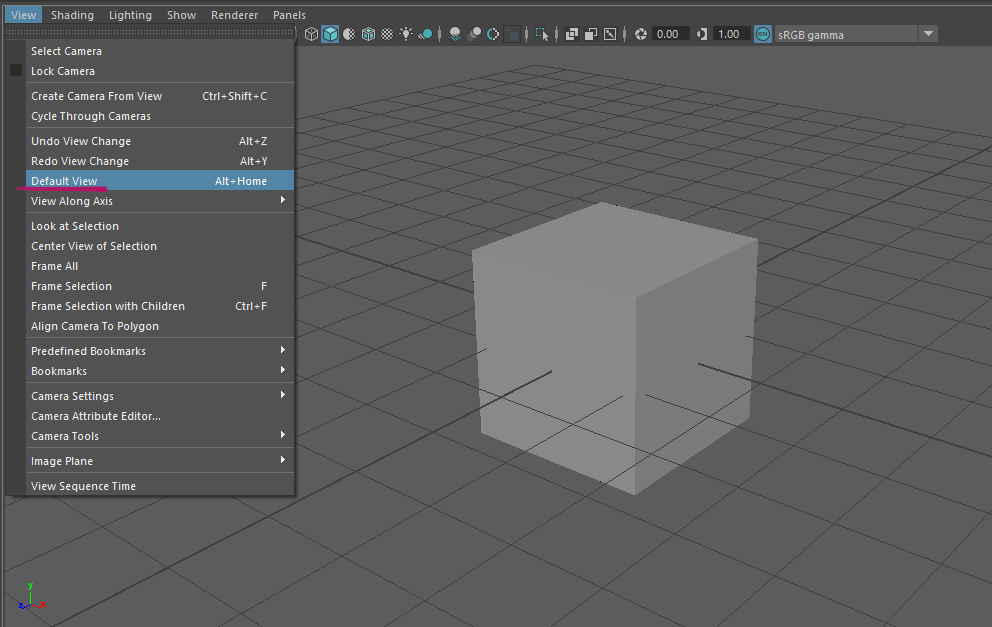
Panel Setup
Maya’s viewport is made up of up to four panels. It supports different panel layouts and allows any editor content in these panels. You will that you like different layouts for different tasks or discover a favourite layout. Starting out, it makes the most sense to try different layouts for different tasks until you find one that fits your style of working best.

Switch the layout either via the hotbox. or by going to Panels -> Layouts -> [YOUR LAYOUT] in the small menu bar over the editor pane.

You can switch the content of each pane in the small menu bar over the editor pane by going to Panels -> Panel -> [YOUR PANEL CONTENT]
Hotbox

Open the hotbox by pressing and holding down Space over the viewport. Mayas hotbox is a quicker way of accessing all menus in the menu bar.

Tap spacebar to toggle between your panel setup and a maximised viewport.

You can click the middle-area of the hotbox while holding down space to switch the contents / camera of the panel under the cursor.
Note
Main Editor Windows
The official Autodesk Maya Documentation is very thorough explaining the main editor windows. You can refer to their manual pages for more information.